Jumat, 08 Maret 2013

Absolute Center (Vertical & Horizontal) An Image/Photo


Here are some usefull techniques and guidance of CSS and one HTML code for Absolute Center (Vertical & Horizontal) An Image.

Caution:
The problem here is that if you will re-size the browser you cannot scroll to the top. For example: if you have a menu on top you cant view it.


CSS background-image Technique:


html { 
   width:100%; 
   height:100%; 
   background:url(logo.png) center center no-repeat;
}

Table technique:

***---CSS----***
html, body, #wrapper {
   height:100%;
   width: 100%;
   margin: 0;
   padding: 0;
   border: 0;
}
#wrapper td {
   vertical-align: middle;
   text-align: center;
}
***---HTML---***

<html>
<body>
   <table id="wrapper">
      <tr>
         <td><img src="logo.png" alt="" /></td>
      </tr>
   </table>
</body>
</html>


CSS + Inline Image Technique:

img {
   position: absolute;
   top: 50%;
   left: 50%;
   width: 500px;
   height: 500px;
   margin-top: -250px; /* Half the height */
   margin-left: -250px; /* Half the width */
}
It is also possible to do this using div’s and CSS:

<div class="contendor" style="border: 1px solid green; margin: 0; padding: 0; display: table">
<div class="contendor-secundario" style="border: 1px solid yellow; margin: 0; padding: 0; display: table-row">
<div class="columna1" style="border: 1px solid red; margin: 0pt; padding: 0pt; vertical-align: middle; display: table-cell">columna uno</div>
<div class="columna2" style="border: 1px solid blue; margin: 0; padding: 0; display: table-cell">column two,
which is quite higher than the previous one,
also,  we can make even higher
and column 1 is no longer centered
</div>
</div>
</div>

Accessibility/SEO Friendly CSS Hiding

Photo Source: www.iconfinder.com


#content {
    position: absolute;
    top: -9999px;
    left: -9999px;
}

'' Removes an item from the page, without affecting page flow or causing scrollbars. Much better than display: none; or even visibility: hidden; ''


Caution:

This is bad practice! as Google will simply remove your site from their search results altogether. Google has stated time and time again thruough webmaster central for web designers NOT to position elements off the screen. If you are going to need to hide an element use the “display: none;” property, and not “display: hidden;”. If Google penalizes your site for hiding content they will notify you if you have a webmaster tools account, otherwise you may get no notice at all of a manual action taken against your site. If you are penalized, simply submit a request for reconsideration to Google, and explain why you are using the “display: none;” property and prove its for legitimate use, such as having the elements appear with alternate sizes depending on the resolution of the users screen, hence “media queries” in CSS.

For SEO purpose, be aware that this technique could lead you to be blacklisted. The same reason as above. You can hide a mnu item, stuff like that, but if you hide a div full of h1 and anchors just for SEO purpose, google may blacklist list you.

So use with caution or at your own risk. We are not responsible for any thing. Thank You!

Kamis, 07 Maret 2013

How to Get Approved by Adsense & Not Wait 6 Months – Adsense Account Not Active Yet ?

If you are a newbie Blogger or Webmaster and if you are a applying for adsense to monetize your site, then you might have faced the situation where Google asks you to wait for atleast six months to qualify for your adsense account and get approved to show ad slots in your site. 6 Months is too much a long wait and there is no need to lose adsense dollars waiting six months.

How to Get Approved by Google Adsense without for 6 (six) months – Make your Adsense Account Active:

What we found is that Google is not nearly as picky as they make themselves sound to be. The trick is to make your one site or blog in such a way, that you are just providing good content. Don’t worry, once you’re approved you can use that code wherever you want – so put it on other sites. But for the purposes of getting approved, try to limit to just content, content and more content!

There are 3 Main elements that you should focus on when getting Approved by Google Adsense:

1. Site look and feel – Make sure to atleast have a presentable Blog– even if it is just a few tables and a solid background color. Avoid using tacky backgrounds or unprofessional color contrasts.

2. Content – The most important – Google believes in content. If you try to get a website with just a few pages approved, I don’t think you will have any luck. You need to have at least 15-20 pages, preferably, 15-20 pages of Articles/Post Pages, aka content.

3. Traffic – Many experts say that Google Adsense team looks to see what kind of traffic you have and that they do not approve new sites with no traffic. My experience says that these experts are FULL of it. BUT, just to be safe, before you submit your site for approval – try to get your site some traffic.

Here are useful tips you need to make the entire Adsense Approval process Easier and Quicker:


How to Get Approved by Adsense
Photo Source: http://techgyo.com


1. Get content from article directories – just put those articles in your site, getting 15-20 is easy.

2. Before you submit your site for approval, post at some forums with your website’s link in the signature file – this will help you get some immediate traffic.

3. Make a very simple website with 15-20 articles, a contact us page, a privacy policy and the typical disclaimer.

Some Must Have Pages in your Blog While Getting Approved By Adsense:

Well there are some must have pages in you blog which Google would necessarily want to see while approving your Blog Site for the Adsense Program. Plus you should have the links to these pages in the Home Page of your Blog. They Are…
  • Privacy Policy ( Compulsory for Adsense )
  • About Page (This is Optional but effective )
  • Contact Us – (No one Likes Anonymous Bloggers – Optional )
That’s it – you are ready to get approved for Google Adsense. I know this sound too easy, but trust me, it is. And remember, if you do not get approved, you can always fix things and try again.


Image Cropping Application Source Code for iOS

Download Code Link is at the end of the post.


BJ Image Cropper:

BJ Image Cropper is very simple UIVIEW perhaps user friendly that allows user to do cropping, using a cropper which is displayed over an image, and you can drag cropper over image areas and can crop.For this you will need already build .h and .m file which i will provide including whole application. You can get this application by reading above note.

Reference Link

How this application Works ? :

  • When this application start running you will need to select a photo from camera roll and then image is loaded into the UIIMAGEVIEW.
  • After this You will need to press the button Crop when you Touch, a cropper will appear on subview of image and then you have to select your cropping area by touching the ends of rectangle appearing in that Subview.
  • After this You have to touch another button which takes crop image into a Dummy Variable of type UIIMAGE and then you have to put that Dummy variable into the UIIMAGEVIEW.

The Reason for explaining this non-technical part is to let people understand the flow of the program.

Now Again.


Touch Select button => Image loaded into UIIMAGEVIEW

Touch Crop button => Image from UIIMAGEVIEW is loaded into UIVIEW and a Cropper is appeared on that UIVIEW which is able to drag.

Touch Apply Crop Button => Cropped Image from the UIVIEW is Loaded into UIIMAGE *Image and then into UIIMAGEVIEW = image ;

Now here Comes the Code:


  •  This is update is Used to update the gui mask or rectangle which is on UIVIEW.
  • Size of this Rectangle can also be changed by holding clicks at the ends of rectangle corners.
  • In this function if origin is changed then a new origin with same height and width is update
  • If height and width is changed then a new height and width is update.
  • Both above task can be done simultaneously.
  • This function uses BJIMAGECropper.h and BjimageCropper.m which will be provided if you need just comment.
UIVIEW


- (void)updateDisplay {
self.boundsText.text = [NSString stringWithFormat:@"(%f, %f) (%f, %f)", CGOriginX(self.imageCropper.crop), CGOriginY(self.imageCropper.crop), CGWidth(self.imageCropper.crop), CGHeight(self.imageCropper.crop)];

if (SHOW_PREVIEW) {
self.preview.image = [self.imageCropper getCroppedImage];
self.preview.frame = CGRectMake(10,10,self.imageCropper.crop.size.width * 0.1, self.imageCropper.crop.size.height * 0.1);
}
}


- (void)observeValueForKeyPath:(NSString *)keyPath ofObject:(id)object change:(NSDictionary *)change context:(void *)context {
if ([object isEqual:self.imageCropper] && [keyPath isEqualToString:@"crop"]) {
[self updateDisplay];
}
}

-(void) viewWillAppear:(BOOL)animated{
// No need to store… this is 1 use only anyway. Save memory, and release it when done.
self.imgPicker = [[UIImagePickerController alloc] init];
self.imgPicker.allowsEditing = NO;
self.imgPicker.delegate = self;

}
  • This function crops the image this function takes coordinates of mask or rectangle from gui and subtract all pixels from that location to end corners.
Crop

-(IBAction)getcorp:(id)sender{

initWithFrame:CGRectMake(10,10,self.imageCropper.crop.size.width * 0.1, self.imageCropper.crop.size.height * 0.1)];
UIImage *im = [self.imageCropper getCroppedImage];
self.image_view.image = im;
for(UIView *sub in [self.view subviews])
{
if([sub isKindOfClass:[imageCropper class]])
[sub removeFromSuperview];
}
}

  •  This function creates a subview and extract image from UIImageView and creates a mask or rect on that image which is displayed on UIVIEW.
  • Means it creates a cropper on that gui UIVIEW where you image is displayed.
Subview


-(IBAction)corp:(id)sender{

CGFloat height = image_view.bounds.size.height;
CGFloat width = image_view.bounds.size.width;
self.view.backgroundColor = [UIColor colorWithPatternImage:[UIImage imageNamed:@"tactile_noise.png"]];

self.imageCropper = [[BJImageCropper alloc] initWithImage:img andMaxSize:CGSizeMake(height,width) ];
[self.view addSubview:self.imageCropper];
self.imageCropper.center = self.view.center;
self.imageCropper.imageView.layer.shadowColor = [[UIColor blackColor] CGColor];
self.imageCropper.imageView.layer.shadowRadius = 3.0f;
self.imageCropper.imageView.layer.shadowOpacity = 0.8f;
self.imageCropper.imageView.layer.shadowOffset = CGSizeMake(1, 1);

[self.imageCropper addObserver:self forKeyPath:@"crop" options:NSKeyValueObservingOptionNew context:nil];

if (SHOW_PREVIEW) {
self.preview = [[UIImageView alloc] initWithFrame:CGRectMake(10,10,self.imageCropper.crop.size.width * 0.1, self.imageCropper.crop.size.height * 0.1)];
self.preview.image = [self.imageCropper getCroppedImage];
self.preview.clipsToBounds = YES;
self.preview.layer.borderColor = [[UIColor whiteColor] CGColor];
self.preview.layer.borderWidth = 2.0;
[self.view addSubview:self.preview];
}

}
  • This function accesses camera roll.
Camera Roll

-(IBAction)next:(id)sender{

if ([UIImagePickerController isSourceTypeAvailable:UIImagePickerControllerSourceTypeCamera]) {
self.imgPicker.sourceType = UIImagePickerControllerSourceTypeCamera;
}
[self presentModalViewController:self.imgPicker animated:YES];
}
  • When Image is picked picker should be dismissed.

-(void)imagePickerControllerDidCancel :( UIImagePickerController *)picker{
[picker dismissModalViewControllerAnimated:YES];
}
  • Picks image from from camera roll.


- (void)imagePickerController:(UIImagePickerController *)picker didFinishPickingMediaWithInfo:(NSDictionary *)info {
[picker dismissModalViewControllerAnimated:YES];
img = [info objectForKey:@"UIImagePickerControllerOriginalImage"];

self.image_view.image=img;

}


  • This the variable mask which is created on that gui UIView. 

- (UIImage*) maskImage:(UIImage *)image withMask:(UIImage *)maskImage {

CGImageRef maskRef = maskImage.CGImage;

CGImageRef mask = CGImageMaskCreate(CGImageGetWidth(maskRef),
CGImageGetHeight(maskRef),
CGImageGetBitsPerComponent(maskRef),
CGImageGetBitsPerPixel(maskRef),
CGImageGetBytesPerRow(maskRef),
CGImageGetDataProvider(maskRef), NULL, false);

CGImageRef masked = CGImageCreateWithMask([image CGImage], mask);
return [UIImage imageWithCGImage:masked];
}

- (void)viewDidUnload
{
[super viewDidUnload];
[self setImageCropper:nil]; //image croper
[self setBoundsText:nil]; // image croper
[self.imgPicker release]; // Release this here, this will execute when modal view is popped.

}


- (void)viewDidUnload
{
[super viewDidUnload];
[self setImageCropper:nil]; //image croper
[self setBoundsText:nil]; // image croper
[self.imgPicker release]; // Release this here, this will execute when modal view is popped.
// Release any retained subviews of the main view.
// e.g. self.myOutlet = nil;
}


- (BOOL)shouldAutorotateToInterfaceOrientation:(UIInterfaceOrientation)interfaceOrientation
{
// Return YES for supported orientations
return (interfaceOrientation == UIInterfaceOrientationPortrait);
}

Download Link: 


Rabu, 06 Maret 2013

Text To Speech Conversion using Espeak Engine for Iphone Application Development

Introduction:

There are some 3rd party libraries and API which are used to convert TTS ( TEXT TO SPEECH ) in iphone

1) Sphinix                        ( Not Efficeint )

2) Open-Ear                    ( Do not Required Internet Connectivity offline  TTS )

3) Google TTS                 ( Requires Internet Connection )

4) Acapela                      (Not Free You Have to pay to get SDK)

5) Objectuve C Speech Synthesizer Speak Engine  (Do Not Required Internet Connectivity One of the Good offline TTS )


What Is Open-Ear ?

Open-Ear is a shared and open source iOS frame Work for iphone text to speech conversion (TTS Synthesis).This Technology is used to convert English Text Into Speech for iphone .

What is the best part in Open-Ear ?

This source is best because there’s no connectivity issue all processing takes place locally in the device mean you don’t need’s to connect to the internet.

Key Basic Concepts and Tips:

1 ) FliteController creates synthesized speech text to speech (TTS).

Now what is Flite Controller ?

Its an class which controls speech Sysnthesis that is text to speech in Open-Ears.

Recommended not to use Open-Ear?

Becuase app using Open-Ear library had not reached to Apple Store yet. Espeak Engine (Text to Speech Combing Its functionality with iOS Av Foundation Frame Work)

 Friends my focus is on Espeak Synthesized speech.

Now What is Espeak Engine ?

Espeak Engine is a Synthesized speech library which allows conversion of text into speech on iOS Device Just Like on Iphone.

Espeak Engine is static library of Objective-C  which is an OPEN SOURCE Synthesizer.

NOTE: Espeak has not been ported to iOS officially and Google has integrated some aspects like Google voice and translated for iPhone and iPad Apps.

Features (Espeak ):

NOTE: You have to study and understand the code to implement all this i will provide you just initial and basic code which will speak text.If you want to use and get application source code just comment and enter your email address i will mail you the whole project of TTS ( For Iphone Xcode Latest Compiler)

  • Good Quality Sound and Many Voices are Available like male or female voice.
  • This Is Written in C-Language so its very easy to understand.
  • Espeak Support many Human Languages.
  • You can Change speed of voices by changing inside code.
  • You can also enable or disable voice pronunciation .
  • Copy and Paste text anywhere in application.
  • You can also open mulitiple windows.

Sample Code:
I am Pasting here sample small part of code to get introduced to it.

I will Explain the main basic code

First what you have to do is import libraries that is header file.

#import “EspeakEngine.h”

Now in main a  method is viewDidLoad.Here what you have to do is


  • Create a New Instance of speak engine
  • And Set All parameter u like to add like speed,volume,gender’s voice weather its male or female depends at you and etc other parameters.

-(Void viewDidLoad)

{[super viewDidLoad];

engine = [[ESpeakEngine alloc] init];

engine.volume=2;

engine setLanguage :@”en”;

}

Now What Happens when you write text in a text box and press speak button.Following Code is Executed now whats happening here.


  •  Here SpeakEngine method is call and a string is passed which is written in text box

-(IBAction)speech

{

NSString *text = self.textView.text;

[engine speak:text];

}

Now this main function call functions from implementation .m file and and header .h file contains definition,variables of that fuction

Download Code Link 


Post Source: http://crunchmodo.com/text-to-speech/

15 Fresh Resources for Developers and Designers

You will find many resources for designers and developers and of course you wouldn’t always know which one is the best to put to use. That’s where we come in. We have compiled this particular list of 15 fresh resources for developers and designers in order to help you out. These resources have been compiled after scouring the internet for you and these are the best of the best. We will keep updating you regarding more resources as we find them. We hope this list proves helpful and you enjoy the read. Your feedback is always welcome.

Also Read : 30 Fresh Useful Resources for Developers and Designers

COLOR SCHEMES


If you guys are programmers are using either Sublime Text 2 or Textmate for editing code then you might want to consider this particular tool called color schemes. This package is created by Dayle Rees and I am sure looking at the picture gives you the picture of what this package does. You have around 30 different color schemes that you can use to your liking. It does make things easier.


This particular tool is a jQuery plugin and it helps you to add accented characters very easily. You might already be familiar with the concept of long press if you use android devices because they use that function in for almost every command. If you hold down the ‘a’ or ‘e’ key, additional characters popup (as can also be seen in the picture). This can help you save a lot of time and it also makes it easier for you to find ‘special’ characters.

LAYOUT ICONS


There are many different websites that offer you different sets of icons that might include social media icons or even general user-interface icons but this is a little different. This package is created by Ales Nesetril and these icons represent the layout of the web. I am pretty sure you guys can make sense of that just by looking at the icons. These icons are bound to come in handy if you are building a content management system.


We are pretty sure that you are aware of the new features of CSS3 and their application in web animation. Adobe edge was recently introduced and with it comes Adobe Edge Animate. The software is essentially similar to Adobe Flash although the only difference is that it creates animations for the web and you know exactly how easy Adobe makes things so you can pretty much say that web animation just got easier. It is still free so you might want to get your hands on it  soon.


Have you ever visited the website called Reddit? If so then it’s all good but if you have not then you might want to visit and see if it appeals to you or not? Well, if it does than the good news is that you can build a similar website using telescope. This real-time social news framework is built upon Meteor which is equipped with many different features including but not limited to real-time updating, invite-only access, notification and e-mail authentication.


Just reading the name we are pretty sure you guess as to what the functionality might be, not to mention looking at the picture. It is for designers to draw their ideas as soon as it hits their heads. There are a few typography elements you can use and general shape to give your idea an outline. You can create several documents and thereby adjust their width and height etc.


We are certain that you understand exactly how important and used scalable vector graphics are when it comes to websites for which purpose there are many different editors available for you to edit your scalable vector graphics. One such tool is method draw. The best part about this application is that is web-based so you don’t need to download and install it. The best part about this tool is that it is free.


This particular application is a JavaScript library which helps you to build web charts that are built upon D3.js. These charts are formed with HTML, SVG (Scalable Vector Graphics) and CSS. As of now, there are two types of charts available for you to choose from; bar and line graph. You can very easily customize these two graphs using CSS and of course that all depends upon you.


The use of computers to check the e-mail is very minimum according to statistics and everyday more and more people are shifting to the mobile phone medium in order to check their e-mails. For you to check your e-mails on your phone it is imperative for you to receive them too. You can use these responsive e-mail templates and there’s five different ones you can choose from.


It is a fact that creating a responsive e-mail might prove to be a bit challenging but it still is nothing compared to creating a responsive table. It is very tricky as we are sure you must know. There are many solutions available to make the process wee bit simpler one of which is Footable. It is a jQuery plugin that should make you tables responsive and too a bit easily.


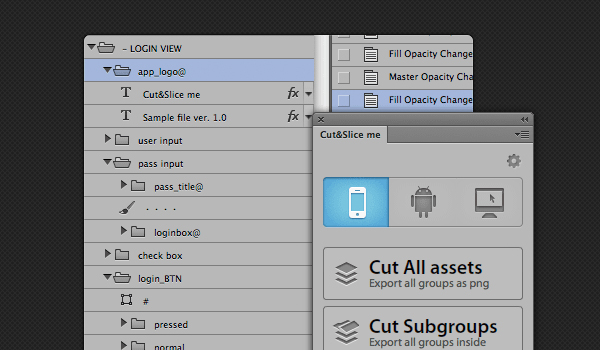
Cut and Slice is a free Photoshop plugin which should allow you to slice your Photoshop layers in order for you to use them in web and it should be able to do that in seconds. It is free but it is only available for CS6 so the rest of you might have to wait. You guys are aware of how difficult and time-taking the job of slicing layers for web can be and especially so if you have millions of them.


If you are using jQuery, folding effect shouldn’t be that big of a deal to you when it comes to web development. You have many free plugins available to you that are able to create such visuals so what is different with PFold? Well, you know how you fold the paper and unfold it back to its original straight or change the shape and everything? PFold sort of does the same thing. You can even aim the fold direction to wherever you want so it’s more interesting.


If you have visited the website called Pinterest then you are sure to know that they present their information in the layout of a grid. For those of you who don’t know, Pinterest has to do with social media. Anyway, using this little tool you can create similar grid layouts. This plugin is actually responsive so it makes the job way better than your average tools.


There are many different functions introduced with CSS3 and even though they are awesome, for example the transformation and transition function; they tend to get a little complex. In order to ease things a little, Adem Ilter has created this tool called Liffect. It adds unbelievably cool effects including Star Wars effects. Can it get more awesome then Star Wars? I guess not.


This is a very light jQuery puglin which helps you create 3D dropdown effect. The name should make it clear that the effect actually looks like Makisu it is folds down. For those of you who don’t know, Makisu is a mat which is woven from bamboo and cotton string which is used in food preparation. It is usually how sushi is rolled. The 3D effects offered by Makisu are built upon CSS 3D transformation so you should only be able to see these effects on modern updated browsers.


This post is adopted from:
Post Source: Reference Link