Tampilkan postingan dengan label Blogger Tricks. Tampilkan semua postingan

Jumat, 15 Maret 2013

10 Tips on How To Increase Alexa Rank Of Your Blog

After Google Page Rank the number which is given high importance by webmasters is Alexa Rank.Believe me many of them judge your blog/website by just seeing your Alexa Rank.Even advertisers check your Alexa Rank to advertise on your blog

increase Alexa Rank


Well honestly speaking Alexa rank is just rubbish and has nothing to do with your blog traffic.So what is this Alexa Ranking and how to get better Alexa Ranking read on.......


What is Alexa Rank?


Alexa.com defines themself as a "web information company".They rank every website and blog  based on their traffic and some other factors.This Alexa Rank gets updated daily.Lesser the number better.

How Alexa Rank is measured?


You might freak out after reading "How Alexa Ranking is measured?"
Alexa.com is measuring your website’s traffic is one of the most unfair surveys around. Why?
They only record those hits which passes through their systems.That means your visitors either have to Install Alexa Toolbar on their browser or you should put an Alexa widget/plugin installed on your blog.
That means the blogs under the niche Blogging,Technology will have a better Alexa Rank compared with the blogs which are not related to Tech Stuff.

10 Tips to Increase Alexa Ranking:

1.Install Alexa Tool Bar:


Install Alexa Toolbar on your browser and also ask your friends, visitors to install toolbar on their browser.

2.Claim your site:


To gain full control over your site.Claim your site on Alexa.com.This will help others to know who owns the site and helps you in ranking better on Alexa.

3.Put Alexa Widget on your blog:


As I already said Alexa counts only those hits which comes under their system.So put an Alexa widget on your blog.

4.Get Traffic From Bloggers and Techy guys:


This is the most important factor that effects your Alexa Rank.If you get more visitors who are bloggers and techy guys then your alexa rank will increase fast because all the Bloggers and Techy people will be installing alexa widget on their browsers.

-----> Also Read: How To Increase Blog Traffic.

5.Write a review about Alexa on your blog:


Write a review about Alexa Ranking and link back to Alexa.com.

6.Ask your visitors to review your blog on Alexa:


Review your blog on Alexa.com and ask your visitors to review your blog.
Write a Review of our Blog on Alexa.

7.Commenting and Backlinking:


Comment on other blogs which are under the niche Blogging and Technology with good traffic and link back to your blog.In this way build more links from blogs with good traffic because backlinks are crucial as you might have noticed that alexa even calculates the number of backlinks you have.

8.Update your blog regularly:


It is strongly recommended to write frequently to increase your alexa rank or else your alexa rank will go down and it becomes hard to bring back your alexa again.

9.Write quality posts:


As I always say quality matters.If you write quality posts then others will automatically link back to you and thereby increasing backlinks and traffic as well which increases your alexa rank.


10.Share your posts on Social Networking sites:


Share your posts on social networks like Facebook,Stumble upon and Digg.These sites not only brings massive traffic but also helps in increasing your Alexa Rank.

Ultimate Keyword Research Guide For Bloggers


What are keywords?

If you are a regular blogger then you might be knowing what I am talking to but if you are a newbie then this word keyword may be a little new for you.Keywords are the words which are used by people while searching on Google, Bing ,Yahoo and other search engines.Keywords play a major role in on page optimization.


Importance of Keywords in Search Engine Ranking:

After Google Panda and Penguin Updates it is said that keyword stuffing and seo is dead but believe me its not. Still Keywords have a great impact in search results.Search Engines especially Google look for the searches which matches the exact keywords searched by Google  However page rank and many other factors has a great impact on search engine ranking(SEO).


Tools to get started with Keywords Research:

The best tool to get started with Keywords Research is Google Adwords Keywords Tool.There are many other advanced paid tools as well but this one is free which is provided by mighty Google  I personally use this tool to do keyword research.This tool shows the number of monthly searches globally and locally for a particular keyword.So, with that information you can come to an estimation on how much traffic you can bring to your website/blog from search engines.

How to get started with Keywords Research?


  • To get started with Keyword research go to Google Adwords Keywords Tool.
  • Enter the keyword for which you want to look the monthly search count.
For example I will check the number of searches for "Facebook Tricks" keyword.

Enter the keyword and hit search.As soon as you hit search you will be displayed the list of all similar keywords and their global and local monthly searches.But the search which you get is the broad search which also include other keywords like "Tricks Facebook","Facebook Trick",Tricks of Facebook 2012" etc etc.Many bloggers think that this is the exact traffic for those keywords but its not ,you have to un check the Broad search and check Exact. That will give you the exact number of searches for that particular keyword.
Ultimate Keyword Research Guide For Bloggers

You can also check the number of searches in a particular country and in particular language.

Now which Keyword To Choose?

It is advised to choose keywords with low competition.After you get results of keywords and their monthly searches just go to Google and check the results of keywords in Google search results.
If you find many top blogs/websites with those exact keywords are ranking high in Google then it is recommended to stay away from those keywords if your blog is new or if you don't have much traffic from Google.

Where to use Keywords?


Use Keywords in Post Title:

The title of the post decides how much traffic you are going to get.Include most of the keywords in your title instead of conjunctions and prepositions.Don't use same keywords repeatedly in title.Such cases will be penalized by Google and your blog will be effected very badly.

Use Keywords in the Post:

You have to use as many keywords as you can in the body of the post.Though keywords in title plays the major role ,content also has its own importance.In the body of the post use those keywords which you didn't use in your post title but which are similar to that keywords.Keep the keywords density less than 4%. Up to 4% keyword density would work fine but if you use more than that then it may lead to penalty.To avoid penalty by Google Penguin and Panda Updates write posts with more than 700-1000 words.

Use Keywords in Custom URL structure:

Avoid using prepositions and conjunctions in URL of the post.Use only keywords in the custom URL structure for your post.

Use keywords in Search Description:

Search description is the description shown in Google next to the the title.Use few keywords which you used in the post title for better ranking.

Use Keywords in H2,H3,H4 etc Tags:

Use proper keywords in heading tags in your post. Don't use too many but use reasonably.

Conclusion:

Though keywords play a major role in search engine ranking, do not over optimize your posts with keywords.Keywords should come naturally.To avoid getting penalized by Google write lengthy posts with good number of keywords.Always maintain quality in your posts.


Jumat, 08 Maret 2013

Absolute Center (Vertical & Horizontal) An Image/Photo


Here are some usefull techniques and guidance of CSS and one HTML code for Absolute Center (Vertical & Horizontal) An Image.

Caution:
The problem here is that if you will re-size the browser you cannot scroll to the top. For example: if you have a menu on top you cant view it.


CSS background-image Technique:


html { 
   width:100%; 
   height:100%; 
   background:url(logo.png) center center no-repeat;
}

Table technique:

***---CSS----***
html, body, #wrapper {
   height:100%;
   width: 100%;
   margin: 0;
   padding: 0;
   border: 0;
}
#wrapper td {
   vertical-align: middle;
   text-align: center;
}
***---HTML---***

<html>
<body>
   <table id="wrapper">
      <tr>
         <td><img src="logo.png" alt="" /></td>
      </tr>
   </table>
</body>
</html>


CSS + Inline Image Technique:

img {
   position: absolute;
   top: 50%;
   left: 50%;
   width: 500px;
   height: 500px;
   margin-top: -250px; /* Half the height */
   margin-left: -250px; /* Half the width */
}
It is also possible to do this using div’s and CSS:

<div class="contendor" style="border: 1px solid green; margin: 0; padding: 0; display: table">
<div class="contendor-secundario" style="border: 1px solid yellow; margin: 0; padding: 0; display: table-row">
<div class="columna1" style="border: 1px solid red; margin: 0pt; padding: 0pt; vertical-align: middle; display: table-cell">columna uno</div>
<div class="columna2" style="border: 1px solid blue; margin: 0; padding: 0; display: table-cell">column two,
which is quite higher than the previous one,
also,  we can make even higher
and column 1 is no longer centered
</div>
</div>
</div>

Kamis, 07 Maret 2013

How to Get Approved by Adsense & Not Wait 6 Months – Adsense Account Not Active Yet ?

If you are a newbie Blogger or Webmaster and if you are a applying for adsense to monetize your site, then you might have faced the situation where Google asks you to wait for atleast six months to qualify for your adsense account and get approved to show ad slots in your site. 6 Months is too much a long wait and there is no need to lose adsense dollars waiting six months.

How to Get Approved by Google Adsense without for 6 (six) months – Make your Adsense Account Active:

What we found is that Google is not nearly as picky as they make themselves sound to be. The trick is to make your one site or blog in such a way, that you are just providing good content. Don’t worry, once you’re approved you can use that code wherever you want – so put it on other sites. But for the purposes of getting approved, try to limit to just content, content and more content!

There are 3 Main elements that you should focus on when getting Approved by Google Adsense:

1. Site look and feel – Make sure to atleast have a presentable Blog– even if it is just a few tables and a solid background color. Avoid using tacky backgrounds or unprofessional color contrasts.

2. Content – The most important – Google believes in content. If you try to get a website with just a few pages approved, I don’t think you will have any luck. You need to have at least 15-20 pages, preferably, 15-20 pages of Articles/Post Pages, aka content.

3. Traffic – Many experts say that Google Adsense team looks to see what kind of traffic you have and that they do not approve new sites with no traffic. My experience says that these experts are FULL of it. BUT, just to be safe, before you submit your site for approval – try to get your site some traffic.

Here are useful tips you need to make the entire Adsense Approval process Easier and Quicker:


How to Get Approved by Adsense
Photo Source: http://techgyo.com


1. Get content from article directories – just put those articles in your site, getting 15-20 is easy.

2. Before you submit your site for approval, post at some forums with your website’s link in the signature file – this will help you get some immediate traffic.

3. Make a very simple website with 15-20 articles, a contact us page, a privacy policy and the typical disclaimer.

Some Must Have Pages in your Blog While Getting Approved By Adsense:

Well there are some must have pages in you blog which Google would necessarily want to see while approving your Blog Site for the Adsense Program. Plus you should have the links to these pages in the Home Page of your Blog. They Are…
  • Privacy Policy ( Compulsory for Adsense )
  • About Page (This is Optional but effective )
  • Contact Us – (No one Likes Anonymous Bloggers – Optional )
That’s it – you are ready to get approved for Google Adsense. I know this sound too easy, but trust me, it is. And remember, if you do not get approved, you can always fix things and try again.


Rabu, 06 Maret 2013

15 Fresh Resources for Developers and Designers

You will find many resources for designers and developers and of course you wouldn’t always know which one is the best to put to use. That’s where we come in. We have compiled this particular list of 15 fresh resources for developers and designers in order to help you out. These resources have been compiled after scouring the internet for you and these are the best of the best. We will keep updating you regarding more resources as we find them. We hope this list proves helpful and you enjoy the read. Your feedback is always welcome.

Also Read : 30 Fresh Useful Resources for Developers and Designers

COLOR SCHEMES


If you guys are programmers are using either Sublime Text 2 or Textmate for editing code then you might want to consider this particular tool called color schemes. This package is created by Dayle Rees and I am sure looking at the picture gives you the picture of what this package does. You have around 30 different color schemes that you can use to your liking. It does make things easier.


This particular tool is a jQuery plugin and it helps you to add accented characters very easily. You might already be familiar with the concept of long press if you use android devices because they use that function in for almost every command. If you hold down the ‘a’ or ‘e’ key, additional characters popup (as can also be seen in the picture). This can help you save a lot of time and it also makes it easier for you to find ‘special’ characters.

LAYOUT ICONS


There are many different websites that offer you different sets of icons that might include social media icons or even general user-interface icons but this is a little different. This package is created by Ales Nesetril and these icons represent the layout of the web. I am pretty sure you guys can make sense of that just by looking at the icons. These icons are bound to come in handy if you are building a content management system.


We are pretty sure that you are aware of the new features of CSS3 and their application in web animation. Adobe edge was recently introduced and with it comes Adobe Edge Animate. The software is essentially similar to Adobe Flash although the only difference is that it creates animations for the web and you know exactly how easy Adobe makes things so you can pretty much say that web animation just got easier. It is still free so you might want to get your hands on it  soon.


Have you ever visited the website called Reddit? If so then it’s all good but if you have not then you might want to visit and see if it appeals to you or not? Well, if it does than the good news is that you can build a similar website using telescope. This real-time social news framework is built upon Meteor which is equipped with many different features including but not limited to real-time updating, invite-only access, notification and e-mail authentication.


Just reading the name we are pretty sure you guess as to what the functionality might be, not to mention looking at the picture. It is for designers to draw their ideas as soon as it hits their heads. There are a few typography elements you can use and general shape to give your idea an outline. You can create several documents and thereby adjust their width and height etc.


We are certain that you understand exactly how important and used scalable vector graphics are when it comes to websites for which purpose there are many different editors available for you to edit your scalable vector graphics. One such tool is method draw. The best part about this application is that is web-based so you don’t need to download and install it. The best part about this tool is that it is free.


This particular application is a JavaScript library which helps you to build web charts that are built upon D3.js. These charts are formed with HTML, SVG (Scalable Vector Graphics) and CSS. As of now, there are two types of charts available for you to choose from; bar and line graph. You can very easily customize these two graphs using CSS and of course that all depends upon you.


The use of computers to check the e-mail is very minimum according to statistics and everyday more and more people are shifting to the mobile phone medium in order to check their e-mails. For you to check your e-mails on your phone it is imperative for you to receive them too. You can use these responsive e-mail templates and there’s five different ones you can choose from.


It is a fact that creating a responsive e-mail might prove to be a bit challenging but it still is nothing compared to creating a responsive table. It is very tricky as we are sure you must know. There are many solutions available to make the process wee bit simpler one of which is Footable. It is a jQuery plugin that should make you tables responsive and too a bit easily.


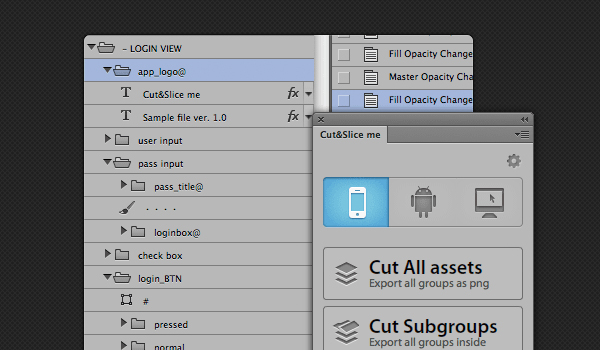
Cut and Slice is a free Photoshop plugin which should allow you to slice your Photoshop layers in order for you to use them in web and it should be able to do that in seconds. It is free but it is only available for CS6 so the rest of you might have to wait. You guys are aware of how difficult and time-taking the job of slicing layers for web can be and especially so if you have millions of them.


If you are using jQuery, folding effect shouldn’t be that big of a deal to you when it comes to web development. You have many free plugins available to you that are able to create such visuals so what is different with PFold? Well, you know how you fold the paper and unfold it back to its original straight or change the shape and everything? PFold sort of does the same thing. You can even aim the fold direction to wherever you want so it’s more interesting.


If you have visited the website called Pinterest then you are sure to know that they present their information in the layout of a grid. For those of you who don’t know, Pinterest has to do with social media. Anyway, using this little tool you can create similar grid layouts. This plugin is actually responsive so it makes the job way better than your average tools.


There are many different functions introduced with CSS3 and even though they are awesome, for example the transformation and transition function; they tend to get a little complex. In order to ease things a little, Adem Ilter has created this tool called Liffect. It adds unbelievably cool effects including Star Wars effects. Can it get more awesome then Star Wars? I guess not.


This is a very light jQuery puglin which helps you create 3D dropdown effect. The name should make it clear that the effect actually looks like Makisu it is folds down. For those of you who don’t know, Makisu is a mat which is woven from bamboo and cotton string which is used in food preparation. It is usually how sushi is rolled. The 3D effects offered by Makisu are built upon CSS 3D transformation so you should only be able to see these effects on modern updated browsers.


This post is adopted from:
Post Source: Reference Link


Minggu, 20 Januari 2013

New Popular Posts With Thumbnail For Blogger

In this Tutorial i will show, how to create Popular Posts with thumbnail and snipped. Related to this topic i posted a tutorial on How to create Popular Posts with carousel slider. This previous widget can be use at bottom of the posts and on header. But in this tutorial i will show you how to create Popular Posts with thumbnail and snipped on Sidebar. This is common widget but this widget has some features which other widgets doesn't have. These Features include:

  • SEO friendly (not javascript)
  • Dynamic result based on real statistic
  • Easy to custumized
Without wating time, lets start th work to in install this widget.

Steps:

1: Login to Blogger Dashboard and navigate to Design –> Page Elements
2: Click “Add Gadget” and Choose “Popular Posts” and Customize the gadget with more than 4 popular post will show–> “Display Up to” … Posts.
Note: (If you already have this gadget skip this step).


*If you have Popular Post Gadget then :
3: Click on "Add a Gadget" again and Select a HTML/JavaScript Widget just under the header and paste the following code inside it,


<style type="text/css" media="screen">

#PopularPosts1 {
overflow:hidden;
margin-top:5px;
padding:0px 0px;
height:400px;

}

#PopularPosts1 ul {
width:220px;
overflow:hidden;
list-style-type: none;
padding: 0px 0px;
margin:0px 0px;
}


#PopularPosts1 li {
width:208px;
padding: 5px 5px;
margin:0px 0px 5px 0px;
list-style-type:none;
float:none;
height:80px;
overflow: hidden;
background:#fff url(http://i879.photobucket.com/albums/ab351/bloggerblogimage/blogger/post.jpg) repeat-x;
border:1px solid #ddd;
}

#PopularPosts1 li .item-title {
color:#A5A9AB;
font-size:1em;
margin-bottom:0.5em;
}

#PopularPosts1 li .item-title a {
text-decoration:none;
color:#4B545B;
font-size:11px;
height:18px;
overflow:hidden;
margin:0px 0px;
padding:0px 0px 2px 0px;
}

#PopularPosts1 li img {
float:left;
margin-right:5px;
background:#EFEFEF;
border:0;
}

#PopularPosts1 li .item-snippet {
overflow:hidden;
font-family:Tahoma,Arial,verdana, sans-serif;
font-size:10px;
color:#262B2F;
padding:0px 0px;
margin:0px 0px;
}

#PopularPosts1 .item-snippet a,
#PopularPosts1 .item-snippet a:visited {
color:#3E4548;
text-decoration: none;
}

#PopularPosts1 .spyWrapper {
height: 100%;
overflow: hidden;
position: relative;
}

#PopularPosts1 {
-webkit-border-radius: 5px;
-moz-border-radius: 5px;
}

.tags span,
.tags a {
-webkit-border-radius: 8px;
-moz-border-radius: 8px;
}

a img {
border: 0;
}

-->
</style>
<script src="http://ajax.googleapis.com/ajax/libs/jquery/1.6.2/jquery.min.js" type="text/javascript"></script>
<script type="text/javascript" charset="utf-8">
$(function () {
$('.popular-posts ul').simpleSpy();
});
</script>
<script src="http://accordion-for-blogger.googlecode.com/svn/trunk/simplespy.js" type="text/javascript"></script>
4: Save it. You're done.

FIVE PAGE NAVIGATION STYLES FOR BLOGGER - PART 2


This is the Part 2 of this Tutorial. This Tutorial is about how  to change Page Navigation Style for blogger with Five Page Navigation Styles. I am pretty sure, you will like these styles. The most important thing in this tutorial is that this Tutorial is lengthy so it will take your time to change Page Navigation Style for blogger, because this is the Part 1 of this tutorial. But you don't have to worry about this because i have arrange this tutorial so that you find easy to perform these following steps and that's why i divided this tutorial in two parts.

This is the view of those Page Navigations Styles.


Style 1

.blog-pager,#blog-pager{
  font-family:"Times New Roman", Times, serif;
  font-weight:normal;
  width:500px;
  font-size: 0.8em;
  padding: 0.6em 0.5em;
background: #3E3E3E;
 } 
.showpageNum a,.showpage a {
  text-decoration: none;
  padding: 0.3em 0.5em;
  color: #055d90;
  white-space: nowrap;
  background: #3E3E3E;
  color: #ffffff;
      margin-right: 0.1em;
  }  
.showpageNum a:hover,.showpage a:hover {
background: #EC5210;
  }
.showpageOf{
  margin:0 8px 0 0;
  display:none;
  }
.showpagePoint {
  text-decoration: none;
  padding: 0.3em 0.5em;
  color: #055d90;
  white-space: nowrap;
  background: #313131;
  color: #868686;
  margin-right: 0.1em;
  }


Style 2 

.blog-pager,#blog-pager{
  font-family:"Times New Roman", Times, serif;
  font-weight:normal;
  width:500px;
  font-size: 0.8em;
  padding: 0.6em 0.5em;
  background-color:#000000;
  text-align:center;
 } 
.showpageNum a,.showpage a {
  text-decoration: none;
  padding: 0.3em 0.5em;
  color: #055d90;
  white-space: nowrap;
  color: #ffffff;
   margin-right: 0.1em;
  }  
.showpageNum a:hover,.showpage a:hover {
 color:#A30A1A;
 text-decoration:none;
 background-color:#ffffff;
  }
.showpageOf{
  margin:0 8px 0 0;
  display:none;
  }
.showpagePoint {
color:#ffffff;
text-decoration:none;
background-color:#A9061B;
width:36px;
height:16px;
font-size:12px;
padding-left:5px;
padding-right:6px;
padding-top:3px;
padding-bottom:4px;
  }


Style 3 

.blog-pager,#blog-pager{
 font-family:Arial, Helvetica, sans-serif;
 font-size:11px;
 width:500px;
 text-align:center;
 } 
.showpageNum a,.showpage a {
 float:left;
 line-height:14px;
 padding:2px 4px 0;
 min-width:8px;
 border:1px solid #d7dce0;
 color:#848a8c;
 text-decoration:none;
 margin:0 3px;
 }  
.showpageNum a:hover,.showpage a:hover {
 color:#fff;
 background:#7f8487;
 border-bottom-color:#848a8c;
 }
.showpageOf{
  margin:0 8px 0 0;
  display:none;
  }
.showpagePoint {
 color:#fff;
 background:#7f8487;
 border-bottom-color:#848a8c;
 float:left;
 line-height:14px;
 padding:2px 4px 0;
 min-width:8px;
 border:1px solid #d7dce0;
 text-decoration:none;
  }


Style 4 

.blog-pager,#blog-pager{
 font-size: 0.6em;font-family:verdana;
 padding: 0.2em 0.5em; 
 margin-right: 0.1em; 
 border:1px solid #FFF; 
 background: #FFF; text-decoration: none;
 width:500px;
 } 
.showpageNum a,.showpage a {
 color: #693; 
 text-decoration: underline;
 border: 1px solid #E3E3E3; 
 text-decoration: none; 
 padding: 0.2em 0.5em;
 }  
.showpageNum a:hover,.showpage a:hover {
 border: 1px solid #693;
  }
.showpageOf{
  margin:0 8px 0 0;
  display:none;
  }
.showpagePoint {
 border: 1px solid #693;
 padding: 0.2em 0.5em;
 font-weight: bold; 
 background: #693; color: #FFF;
  }


Style 5 

.blog-pager,#blog-pager{
  font-family:"Times New Roman", Times, serif;
  font-weight:normal;
  width:500px;
  font-size: 0.8em;
 } 
.showpageNum a,.showpage a {
  display: block;
  float: left;
  padding: 3px 5px 3px 5px;
  margin-right: 3px;
  border: 1px solid;
  color: #FF6400;
  border-color: #FF6400;
  background: #FFF url(http://i1133.photobucket.com/albums/m596/abu-farhan/Meneame.png) bottom left repeat-x;
  text-decoration:none;
 }  
.showpageNum a:hover,.showpage a:hover {
  border-color: #FF9400;
  background: #FFBE94;
  color: #FF6400;
  }
.showpageOf{
  margin:0 8px 0 0;
  display:none;
  }
.showpagePoint {
  border-color: #FF9400;
  background: #FFBE94;
  color: #FF6400;
  border: 1px solid;
  font-weight: bold;
  display: block;
  float: left;
  padding: 3px 5px 3px 5px;
  margin-right: 3px;
  }


Step 1:
1: Go To Blogger > Design > Page Elements
2: Don't check the "Expand widget Templates" box
3: Search for ]]></b:skin>

4: Copy your desired css script from above
5: Just before ]]></b:skin>  paste the css script

Step 2: 
6:  Search for </body>
7: Just before </body>  paste this: 
<script type='text/javascript'>;var home_page='/';var urlactivepage=location.href;var postperpage=7;var numshowpage=4;var upPageWord ='Prev';var downPageWord ='Next';</script>;<script src='http://scriptabufarhan.googlecode.com/svn/trunk/pagenaviv202-min.js' type='text/javascript'></script>
Change this based on your blog setting:
var postperpage=7;
var numshowpage=4;
postperpage : How many posts per page for your blog.numshowpage : How many number will show in your page navigation.
Just change the numbers only.

8: Save it.
Step 3: 
9:  Again go to the Edit HTML page and check the "Expand widget Templates" box
10: Search for this:
'data:label.url'

11: Replace this with:
'data:label.url + &quot;?&amp;max-results=7&quot;'
Change 7 base on how many post per page you want to show.

12: Save it. You are done.